> ## Documentation Index
> Fetch the complete documentation index at: https://docs.prelaunch.online/llms.txt
> Use this file to discover all available pages before exploring further.

# Payments Integration

> Accept payments and manage subscriptions with PreLaunch

## Payments Feature Overview

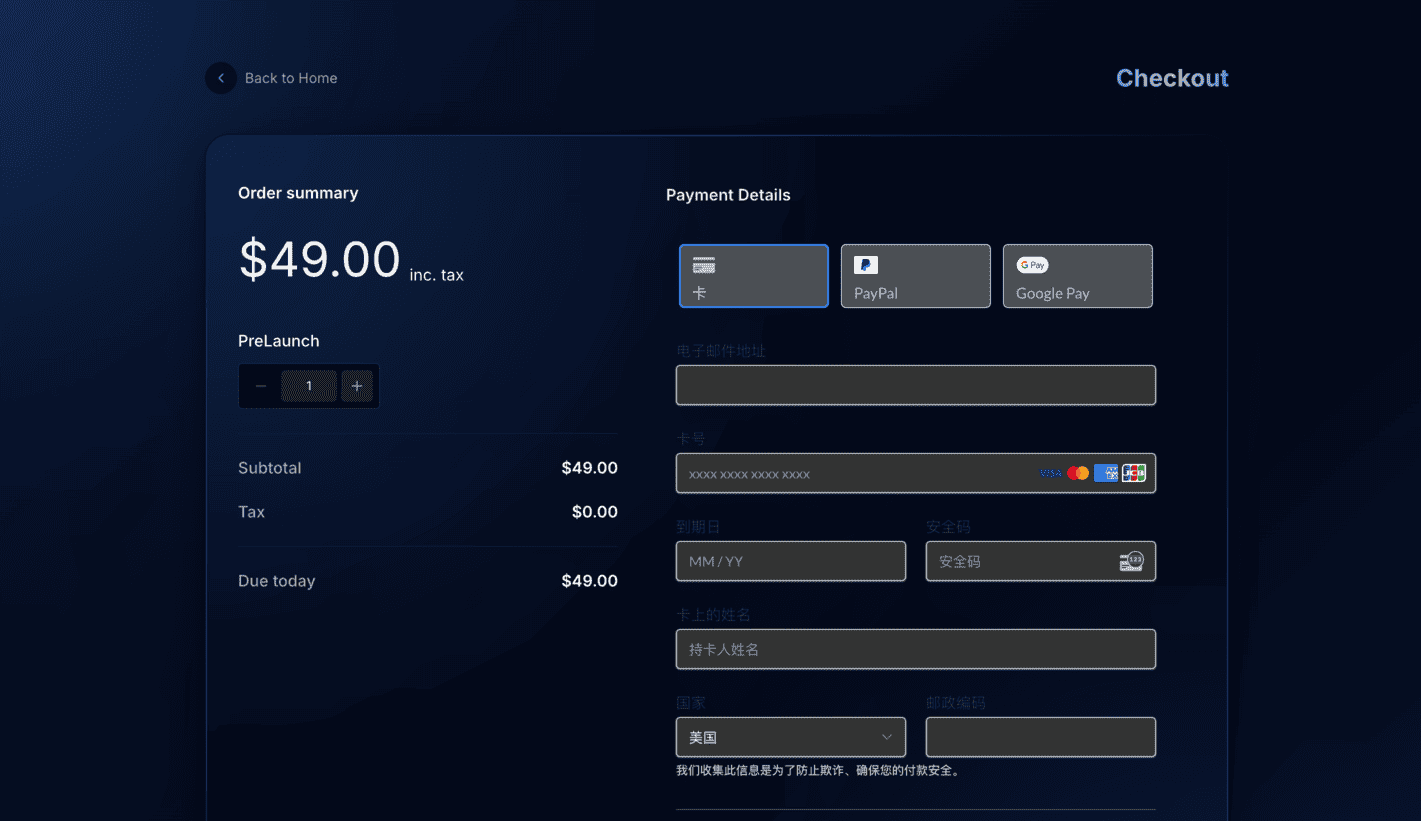
PreLaunch comes with comprehensive payment capabilities, allowing you to monetize your product even during the pre-launch phase. The template includes integration with Paddle, giving you a powerful system to handle transactions.

<img src="https://mintcdn.com/maplegroup/jgEMOrBdhouQZGGT/images/payments-demo.png?fit=max&auto=format&n=jgEMOrBdhouQZGGT&q=85&s=0db8682db63801549bf35923228a68a3" alt="Payments Feature Example" width="1421" height="821" data-path="images/payments-demo.png" />

## Key Features

* **Payment Processing**: Support for both one-time purchases and recurring subscriptions
* **Customizable Pricing Plans**: Create and display different pricing tiers
* **Checkout Flow**: Streamlined checkout experience for customers
* **Customer Management**: View and manage customer information and subscriptions
* **Webhook Integration**: Automatically handle payment events
* **Mobile-Responsive Design**: Payment flows work on all devices

## Paddle Integration

PreLaunch includes a comprehensive integration with Paddle, which is particularly well-suited for SaaS businesses:

* **Advantages**:
  * Handles VAT/tax calculations and compliance automatically
  * Built-in subscription management
  * Supports multiple currencies
  * Lower setup complexity

[Learn more about Paddle integration](/features/payments/paddle-integration)

## Implementing a Pricing Page

PreLaunch includes a ready-to-use pricing component that you can easily customize:

```tsx theme={null}
import { Pricing } from '@/components/landing/Pricing';

export default function PricingPage() {
  return (
    <div className="pricing-page">
      <h1>Choose Your Plan</h1>
      <p>Select the plan that best fits your needs</p>
      
      <Pricing />
    </div>
  );
}
```

## Configuring Pricing Plans

All pricing plans are configured in the `config.ts` file. You can easily modify or add new plans:

```typescript theme={null}
// config.ts
paddle: {
  plans: [
    {
      priceId: "pri_xxxxxxxxxxxxxxxx",  // Paddle price ID
      id: "basic",
      name: "Basic Plan",
      description: "For individuals and small projects",
      price: 29,
      priceAnchor: 49,  // Original price (for showing discount)
      features: [
        "Feature 1",
        "Feature 2",
        "Feature 3"
      ],
    },
    {
      priceId: "pri_yyyyyyyyyyyyyyyy",  // Paddle price ID
      id: "pro",
      name: "Pro Plan",
      description: "For professional users",
      price: 79,
      features: [
        "Everything in Basic",
        "Feature 4",
        "Feature 5",
        "Feature 6"
      ],
      isFeatured: true,  // Highlight this plan
    },
    // Add more plans as needed
  ],
},
```

## Checkout Components

PreLaunch provides pre-built checkout buttons for Paddle:

### Paddle Checkout Button

```tsx theme={null}
import { ButtonCheckout } from '@/components/ButtonCheckout';

export default function PricingCard() {
  return (
    <div className="pricing-card">
      <h3>Pro Plan</h3>
      <p className="price">$79/month</p>
      <ul>
        <li>Feature 1</li>
        <li>Feature 2</li>
        <li>Feature 3</li>
      </ul>
      
      <ButtonCheckout priceId="pri_xxxxxxxxxxxxxxxx" />
    </div>
  );
}
```

## Customer Portal

PreLaunch includes components for customer account management, allowing users to view and manage their subscriptions:

```tsx theme={null}
import { ButtonPaddleAccount } from '@/components/ButtonPaddleAccount';

export default function AccountPage() {
  return (
    <div className="account-page">
      <h1>Your Account</h1>
      
      <div className="account-management">
        <h2>Subscription Management</h2>
        <p>View or update your subscription</p>
        
        <ButtonPaddleAccount />
      </div>
    </div>
  );
}
```

## Environment Configuration

To use the payment features, you need to set up your environment variables in the `.env.local` file:

### For Paddle:

```
# Paddle Configuration
PADDLE_SANDBOX=true  # Set to false for production
PADDLE_API_KEY=your-api-key-here
PADDLE_NOTIFICATION_WEBHOOK_SECRET=your-webhook-secret-here
NEXT_PUBLIC_PADDLE_CLIENT_TOKEN=your-paddle-client-token-here
```

## Best Practices for Payment Implementation

* **Test Thoroughly**: Always test the checkout flow in sandbox/test mode before going live
* **Set Clear Expectations**: Clearly communicate what users are paying for
* **Secure Environment Variables**: Never expose your payment API keys in client-side code
* **Implement Proper Error Handling**: Provide clear feedback when payment issues occur
* **Monitor Webhooks**: Set up monitoring for payment webhooks to catch any issues

## Troubleshooting Common Issues

<AccordionGroup>
  <Accordion title="Checkout button not working">
    Ensure that your environment variables are correctly set up, including the client token for Paddle. Check your browser console for any errors.
  </Accordion>

  <Accordion title="Webhooks not receiving events">
    Verify that your webhook URLs are correctly configured in your Paddle dashboard and that your webhook secrets match what's in your environment variables.
  </Accordion>

  <Accordion title="Customer portal not loading">
    Check that the user is authenticated and has an active subscription. Verify that the correct customer ID is being passed to the portal component.
  </Accordion>
</AccordionGroup>

## Related Links

<CardGroup cols={2}>
  <Card title="Paddle Integration" icon="credit-card" href="/features/payments/paddle-integration">
    Detailed guide on Paddle payment integration
  </Card>

  <Card title="Configuration" icon="gear" href="/customization/configuration">
    Learn how to customize your pricing and checkout experience
  </Card>
</CardGroup>
